Connecting Shopify
Your store connects through Shopify's collaborator access. You give us your store's collaborator code, then accept our request in your Shopify admin.
Updated
Your store connects through Shopify’s own collaborator access, the same way agencies and freelancers get access to a store. There’s no app to install.
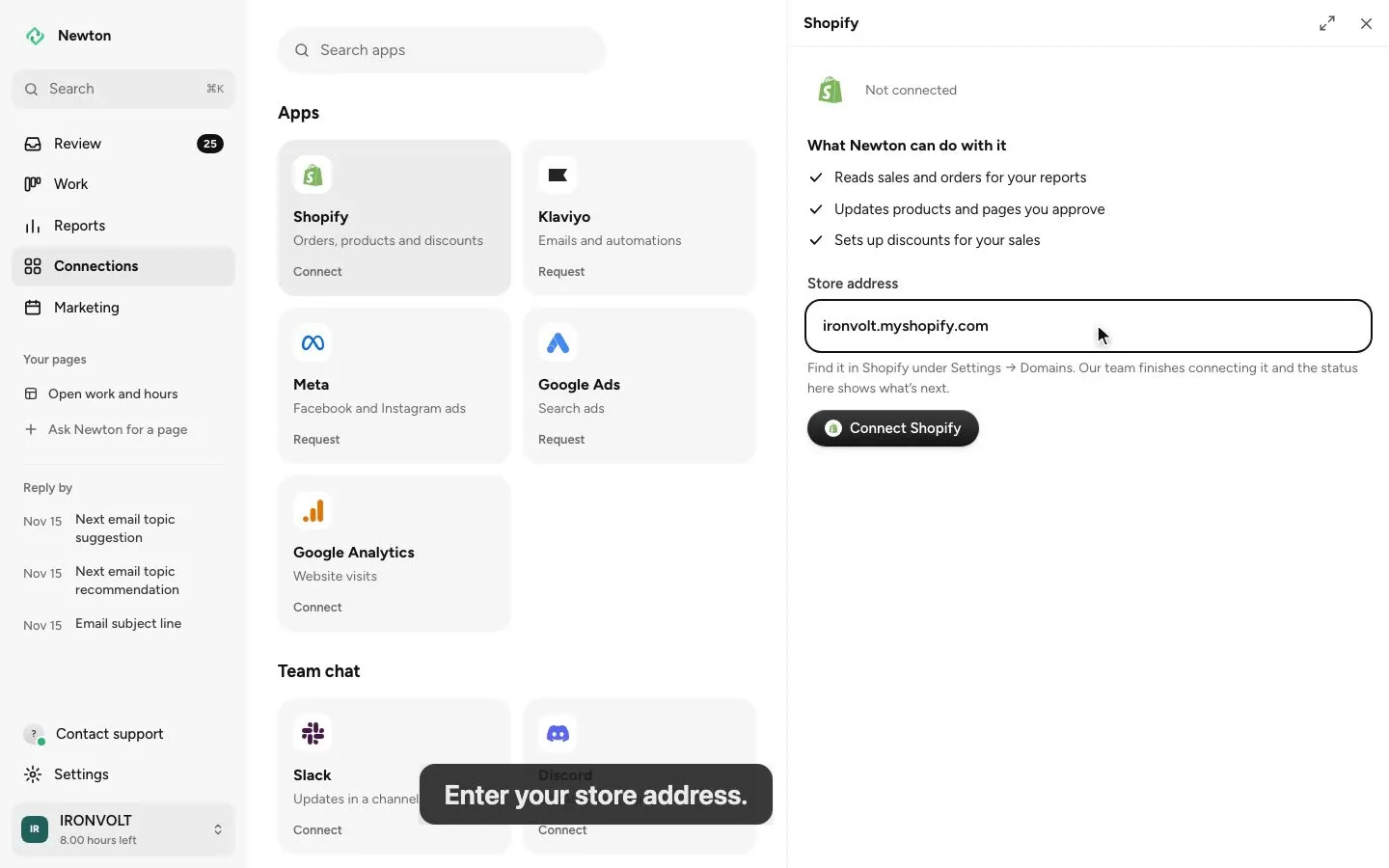
Connecting your store
You do this when you set up your first project, in Connect your store.
- Find your collaborator code. In your Shopify admin, go to Settings → Users → Security. The setup screen asks for a 4-digit code.
- Enter your store address and the code, and choose Connect Shopify.
- Keep going. You’ll see “We’re connecting your store, usually within 1 business day.” You can finish setting up in the meantime.
- Accept our request. When it arrives, you’ll see “Accept our collaborator request in Shopify” in Review and on Connections. In your Shopify admin, go to Settings → Users and accept it.
After you accept, the status changes to Connected once we’ve signed in and checked that the connection works.
What you’ll see in Shopify
Your store’s Users list shows our Partner organization as a collaborator. You can see it there at any time, and remove it there too.
What we can and can’t touch
The collaborator access we ask for covers products, inventory and locations, orders (including draft orders, order edits, fulfillments and returns), discounts, content, pages and navigation, files, themes, markets, translations, publications, shipping, marketing events and reports.
What we do with it:
- Reports: of your orders, we read only totals, dates and status, for your sales figures.
- Theme changes go to an unpublished copy of your live theme first. You review it, and it’s published only when someone makes it live.
- Products and discounts: new products are saved as drafts, and new discounts start later, never straight away. Each change waits for your approval.
- Payments, customer accounts and staff accounts: we don’t ask for access to these.
If your theme is in GitHub
If your theme is kept in a GitHub repository, owners and admins can set that up under Connections → Shopify → Theme from Git. Changes then go through your repository.
If something goes wrong
- “We couldn’t request access with that code.” The code may have changed. Find the current code in Shopify, and write to support from Contact support in the sidebar.
- Needs you. The detail line says what to do, often “Reconnect it”.
Was this helpful?