Using your own AI assistant
Connect Claude, ChatGPT or Codex and do anything you can do in the app from your own assistant. It works as you, with your permissions.
Updated
If you already use Claude, ChatGPT or Codex, you can connect it and work with your projects from there. Anything you can do in the app, it can do for you: ask for work, review and approve it, check your hours and bill, invite your team, connect your apps, change settings. It works as you, with exactly your permissions, in every project you can open.
Connecting it
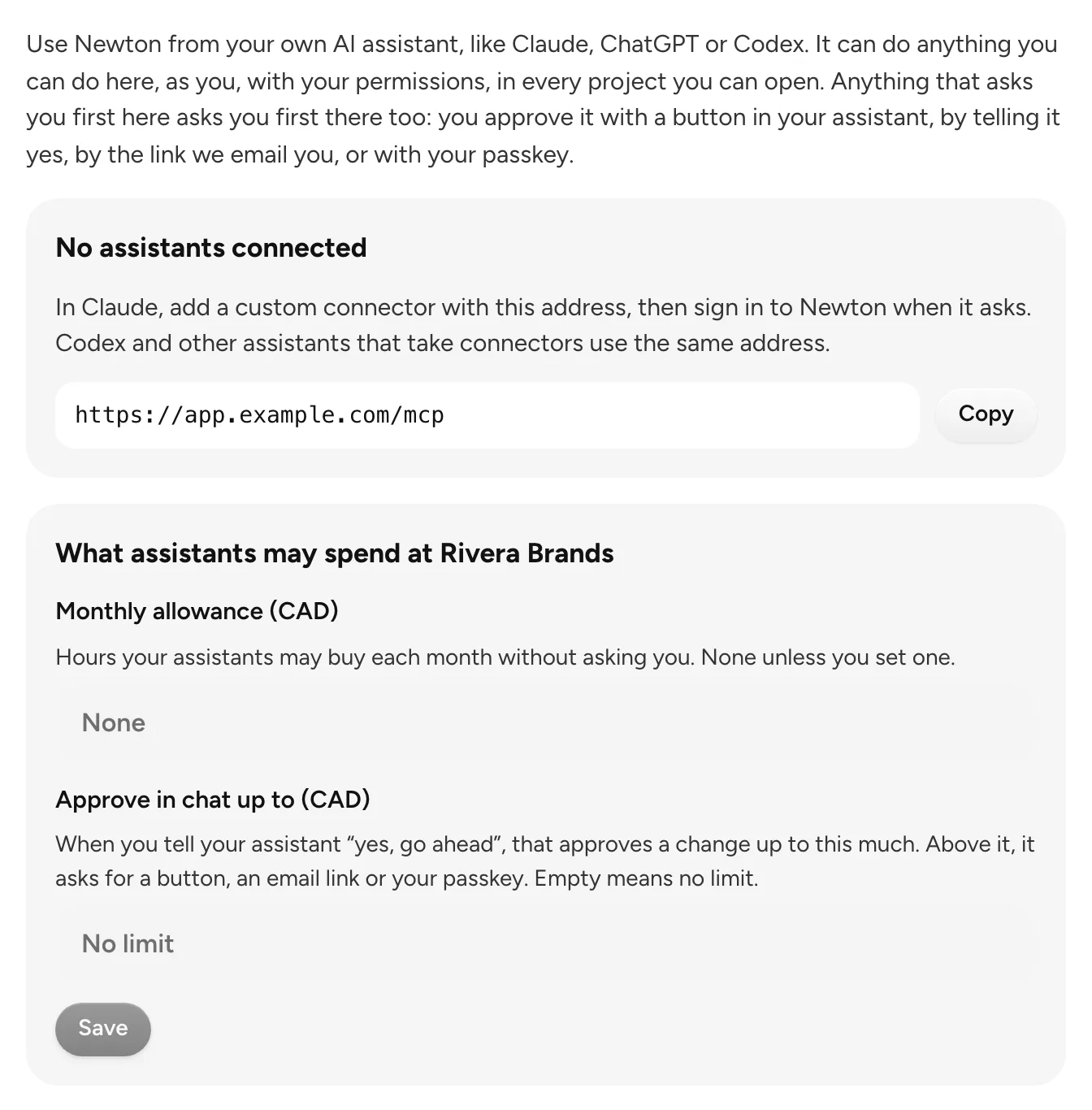
- Open Account → Connected assistants and press Copy the address. On Connections, you’ll find Get the address under Your own assistant.
- In your assistant, add a custom connector with that address. In Codex, or any assistant that takes connectors, add it as a server with that address.
- When it asks, sign in, then choose what it may do and Allow.
What you let it do
On the sign-in screen you choose:
- See your projects, their work and hours, and what’s waiting on you. Always on.
- Ask for work for you. Every request gets a quote first.
- Answer questions and approve work for you. Approvals follow each project’s approval policy.
- Change settings for you: your team, connections, brand files, pages, schedules and the like.
The screen also says who’s asking. If the app isn’t one we recognize, it says so, so you can say Don’t allow.
It asks you first
Anything that asks “are you sure?” in the app asks you first through your assistant too: making work live, undoing it, stopping work, removing someone, disconnecting an app, closing a project, and every money change. Your assistant shows you exactly what will happen, and it happens only after you say yes.
You never need to open the app
Every way to approve works from your assistant or your email:
- Say yes. For most changes, money included (buying hours, starting billing, changing Self-review or Managed), your “yes, go ahead” to your assistant is the approval. You can set a limit on this in Account → Connected assistants, under What assistants may spend at [organization name]: above it, your assistant asks for one of the ways below.
- Tap Approve in your assistant. When your assistant’s app can show buttons, it shows the change with Approve and Decline. Only you can press them.
- Tap Approve in the email. We email you what the change does, with Approve and Decline. The page it opens shows the change again and asks for one more tap. Anyone with that email could approve it, so don’t forward it.
- Use your passkey. Your assistant gives you a page that shows the change; approve it with your face, fingerprint or PIN.
- Your monthly allowance. Set how much your assistant may spend on hours each month without asking at all, in the same place. It’s off until you set it.
Each approval is for exactly the change you were shown, works once, and runs out after 15 minutes. It doesn’t let your assistant do anything else.
Some changes need more than a yes in chat, so a message in your conversation can never approve them alone:
- Letting your assistant do more on its own: turning on auto approvals or a standing rule, raising your allowance or your yes-in-chat limit. Turning any of them down is just a yes.
- How you sign in: a new email address or a backup email takes the email link or your passkey, then the code we email.
- Approvals a project keeps for you: you can approve most finished work in your own words in chat, even with Ask first on. A project’s first send of a kind, sends to more than 5,000 people and big spending changes still need the button, the email, your passkey or a tap in the app. See Approval policy and auto approvals.
Two things you do on a page, because no one else can do them for you: entering a card happens on our payment provider’s own secure page (your assistant gives you the link), and making a passkey happens on your own phone or computer (your assistant gives you a short page for it).
Spending always needs your permission to spend on the project.
Paying from your Link wallet
If your assistant can run commands (Claude Code, Codex and the like), it can pay for you from your Link wallet, without a saved card: an hour pack, an open bill, or the first base fee when you start billing.
- Ask it to, say “buy 2 more hours for my store and pay with Link”. It gets the exact price from us and tells you.
- It runs
link-cli mpp paywith the payment link we give it. Link asks you to approve the payment, in the Link app or your browser. - Once you approve, it’s paid and your hours or bill update straight away. You get the receipt like any other payment, under Past bills on your organization’s Billing tab.
The price always comes from us, and each payment link pays once, so a retry never charges you twice. It needs your permission to spend for the project, and it counts toward any monthly limit you set for your assistant’s spending. Link pays at most $500 at a time in the currency of the bill. For more than that, your assistant gives you a link to Stripe’s own page, where you pay by card. Billing started from Link renews on a card: your assistant gives you Stripe’s page to save one, and until then each month’s bill can be paid from Link the same way.
Seeing what it did
In your chat with Newton, messages from your assistant are marked Sent from Claude (or your assistant’s name). In Account → Connected assistants, What your assistants did lists up to 20 recent actions, with how you approved each one that needed approval.
Limits
Your assistant can’t see anything Newton couldn’t show you, and it never reaches your connected accounts directly. It has rate limits, like 5 requests for work a minute and 100 a day.
Disconnecting
In Account → Connected assistants, choose Disconnect next to it. To change what it may do, disconnect it and connect it again.
Was this helpful?