Approval policy and auto approvals
Each project has an approval policy. Ask first is the default. An admin can choose Auto and set limits.
Updated
Each project has an approval policy that decides what needs your own approval. Find it in Settings → Newton → Approvals. Only the project’s own admins can change it.
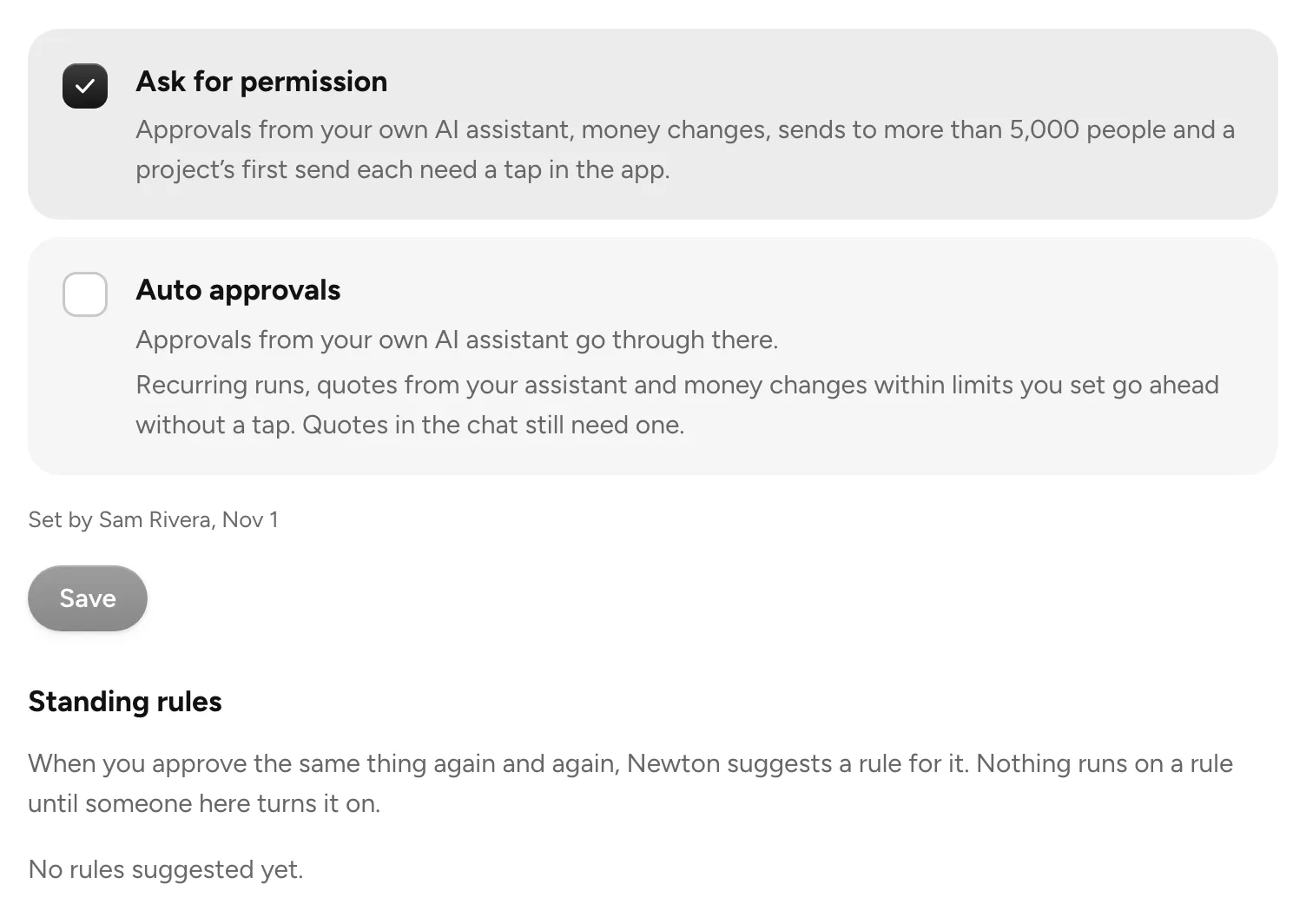
Ask first (the default)
For an ordinary change, your own words to your assistant are enough: say exactly what you approve. A large money change, a first send of its kind, and a send to more than 5,000 people or to an audience of unknown size each need more than a yes in chat: choose Approve in your assistant, confirm on the page our email links to, use your passkey, or approve in the app. See Using your own AI assistant.
Auto approvals
An admin can switch to Auto and set limits:
- The separate Pre-approve → Quotes up to setting can confirm one-off chat quotes within your limits. Choose Off or a limit of 0.50, 1.00, 2.00, 4.00 or 8.00 hours.
- Money changes up to this much a month need no fresh sign-in: from none to $2,500 a month.
With auto approvals on, approvals from your own AI assistant go through in the assistant, without another step.
Setting a money limit needs the spend permission and a recent sign-in, or your own approval when your assistant sets it.
What always needs a person
Whatever the policy:
- a campaign email can be scheduled without a separate Make it live step if a standing rule covers it;
- a send to more than 5,000 people, or a project’s first send of a kind, needs your own approval when it comes from your assistant;
- product and discount changes need a person’s approval.
Standing rules
For approvals that repeat, like a monthly report, see Standing rules.
Was this helpful?