Approving work
Look at the real thing, then approve it or ask for changes. Your approval covers exactly the version you saw.
Updated
When work is ready, it waits for you in Review and shows Your turn in Work. Nothing goes live until it’s approved.
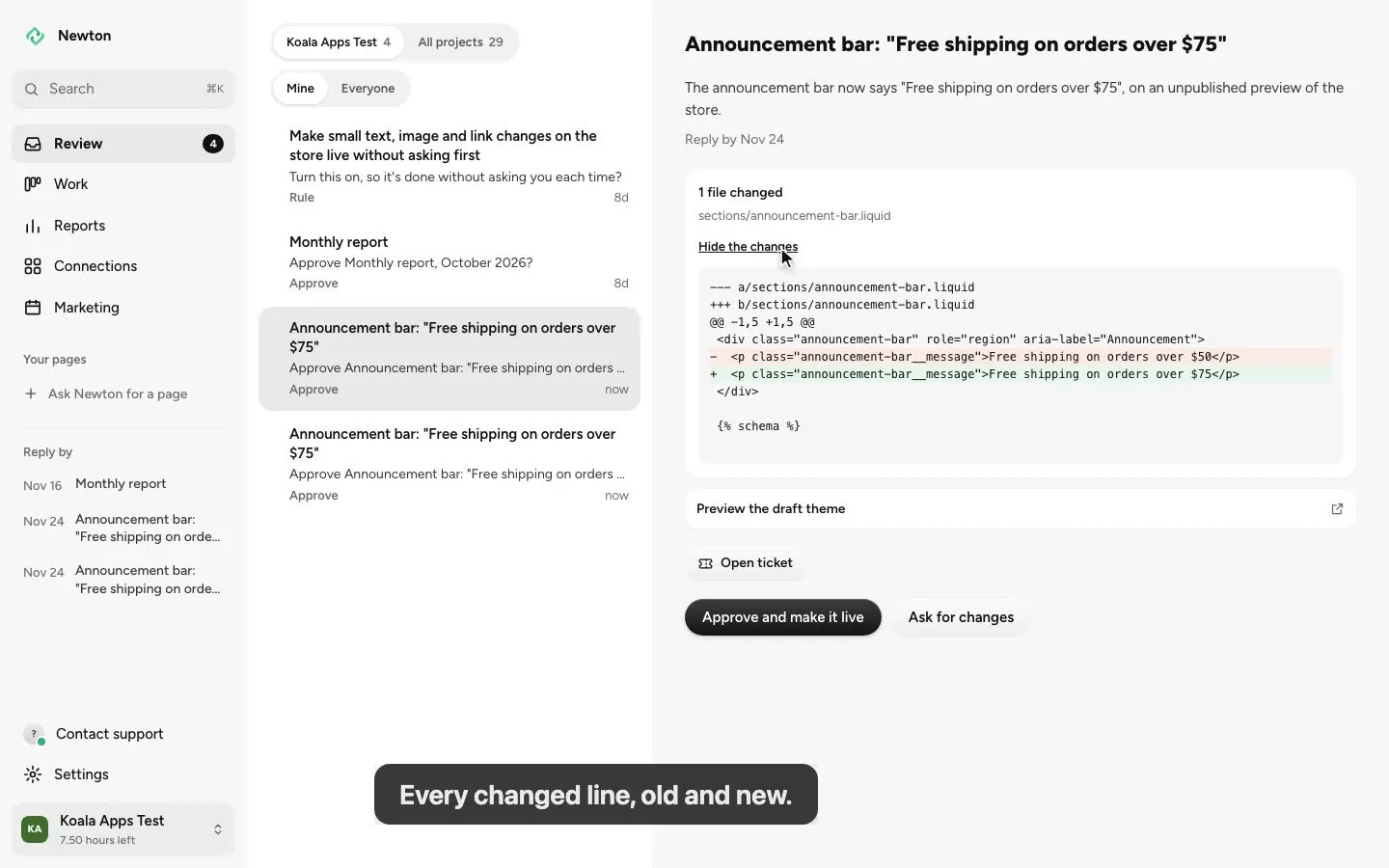
Look at the real thing
The item shows a preview of what will go live. If you see only a summary, open the ticket and ask for the work itself.
- An email: the real email, with Open full size, a Phone and Desktop view, and the Plain-text version.
- A store change: the change, with See the changes line by line.
- Product and discount changes: each change listed, like a new title or a discount code with its start and end.
- Ads: the ads and their settings. Approving gives you the files to upload.
- A report: the report itself.
Approve, or ask for changes
- Approve accepts this version. You may see Approve and make it live for store changes or Approve and schedule for email.
- Ask for changes opens a box. Say what should change and choose Send changes. See Rounds of changes.
Your approval covers that exact version
An approval counts only for the version you saw. If a newer version arrives first, the app asks you to review that one instead. After you ask for changes, the next version needs a fresh approval, even if it looks the same.
Who can approve
Owners, admins and approvers. Requesters and viewers can’t, unless an owner or admin gives them that permission. An agency you work with can approve if you’ve allowed it. See Roles and what each can do.
After you approve
Approved work shows Approved · make it live until it goes live. Some work goes live with Make it live; see Making work live, and undoing it. A standing rule can make some approved work live for you.
Approving from email or your own assistant
Buttons in our emails open the app on that decision, and you approve in the app. An approval email from your own assistant is different: its link opens one page that approves only the change it shows, so don’t forward it. Approvals from your own AI assistant follow your project’s approval policy.
Was this helpful?